The Setup (The Cockpit)
Before we start flying, we need to check our instruments in VS Code. If your environment isn’t set up correctly, your code will not run.
A quick orientation: GitHub and Codespaces are the workspace — they store your files and give you a computer in the browser. R is the tool you will use inside that workspace to clean, summarize, and visualize health data.
The Codespace should open ready to use. If R, Quarto, required packages, or Copilot Chat are missing, do not manually change the environment. Instead, rebuild the container by following Troubleshooting: Rebuild Container. If it still fails after a rebuild, ask your TA or instructor for help.
Verify Your AI Extensions
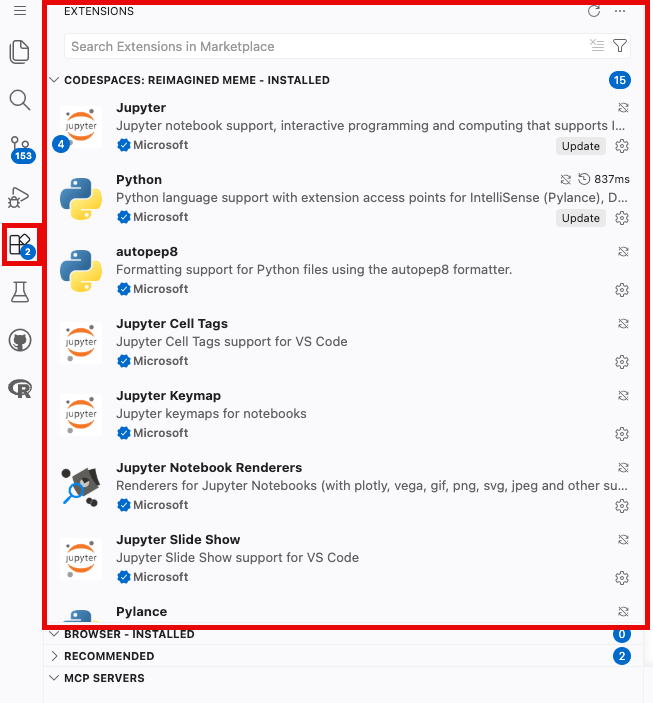
- Click the Extensions icon on the far-left sidebar (it looks like four squares).
- In the search bar, ensure both GitHub Copilot Chat and R are installed and active.
Pick a Chat Model
- Open the Copilot Chat sidebar: go to View → Command Palette and run Chat: Open Chat, or click the chat icon at the top of the VS Code window. Optional tip: a keyboard shortcut (such as Ctrl+Alt+I on Windows) may also work, but shortcuts vary and can conflict with your browser, so use the menu path if nothing happens.
- Look for the model selector dropdown at the bottom of the chat window.
- Quota check: If you see a model marked as included or with a “0x” multiplier, pick it — these models do not use up your free student quota. If your picker only shows models marked “1x” or higher, that is okay: pick any available chat model and continue. Exact model names and multipliers change over time, so your list may not match a classmate’s screen.
- Troubleshooting: If the Chat asks you to “Sign In” or “Subscribe,” your Student Pack is not active. Use your institutional login at
copilot.microsoft.comor authenticate via your university email athttps://m365.cloud.microsoft/chat/.
- Troubleshooting: If the Chat asks you to “Sign In” or “Subscribe,” your Student Pack is not active. Use your institutional login at
Check the Course Package Environment
The personal workspace devcontainer installs the packages required for the course pathway. Do not initialize renv. In each analysis file, load the packages you use explicitly, and list them in the assignment’s dependency note. If a required package is missing after rebuilding the container, copy the error message and ask your TA or instructor rather than installing packages at random.
Interface Review: Where does R actually live?
To learn R, we are going to start in the “sandbox.” Here is how your screen is laid out:
- The Console (Bottom): Your Engine Room. Start here! This is where you can type R commands directly next to the
>prompt and press Enter to see immediate results. If you make a mistake, it will show up here in red text. - The Environment (Top Right): Your Work Bench. Whenever you save a piece of data (like a patient’s age), it will appear in a list here so you can verify R actually “remembers” it.
- The Explorer (Left Sidebar): Your File Cabinet. This is where you find your
data/folder containing your CSV files. - The Editor (Top Center): Your Laboratory Notebook. Typing in the Console is great for testing, but it forgets everything when you close the window. Later in the lesson, we will use the Editor to write and save our permanent code.
Interface Review: Working with .qmd and .Rmd files
When you open a .qmd (Quarto) or .Rmd (RMarkdown) file, you must know where to look. Here is how your coding workflow maps to your screen:
- The Explorer (Left Sidebar): Your File Cabinet. This is where you find your reports and your
data/folder. You cannot run code here; you only click files to open them. - The Editor (Top Center): Your Laboratory Notebook. This is where you write your text narrative and your R code.
- Note: R code must be placed inside grey Code Chunks (starting with
```{r}and ending with```). To run a chunk, click the small green “Play” triangle in the top right corner of that specific grey box.
- Note: R code must be placed inside grey Code Chunks (starting with
- The Console (Bottom): Your Engine Room. When you click the green “Play” button in the Editor, the code is sent down here to be executed. If there is an error, it will show up here in red.
- Pro Tip: You can type quick math directly into the console (like
100 / 4), but it will not be saved in your final report.
- Pro Tip: You can type quick math directly into the console (like
- The Environment (Top Right): Your Work Bench. Whenever you load data or save a calculation, it will appear in a list here so you can verify R actually “remembers” it.