Reopening a Codespace
The Rule: Do not create a new Codespace each time you log in.
- Why? If you click the green “Create” button again, GitHub builds a second computer.
- The Risk: If you left uncommitted work (Drafts) on “Computer A” and you start “Computer B,” your work will appear lost. It isn’t lost: it’s just on the other computer.
To resume exactly where you left off:
Steps
Go to the Codespace Dashboard: https://github.com/codespaces
- Think of this as the “Front Desk” where all your active computers are listed.
Find your Codespace
- Look for the box labeled with your course repository name.
- Note: GitHub gives each Codespace a funny random name (e.g., literate-computing-machine or glorious-couscous). This is the name of your rented desk.
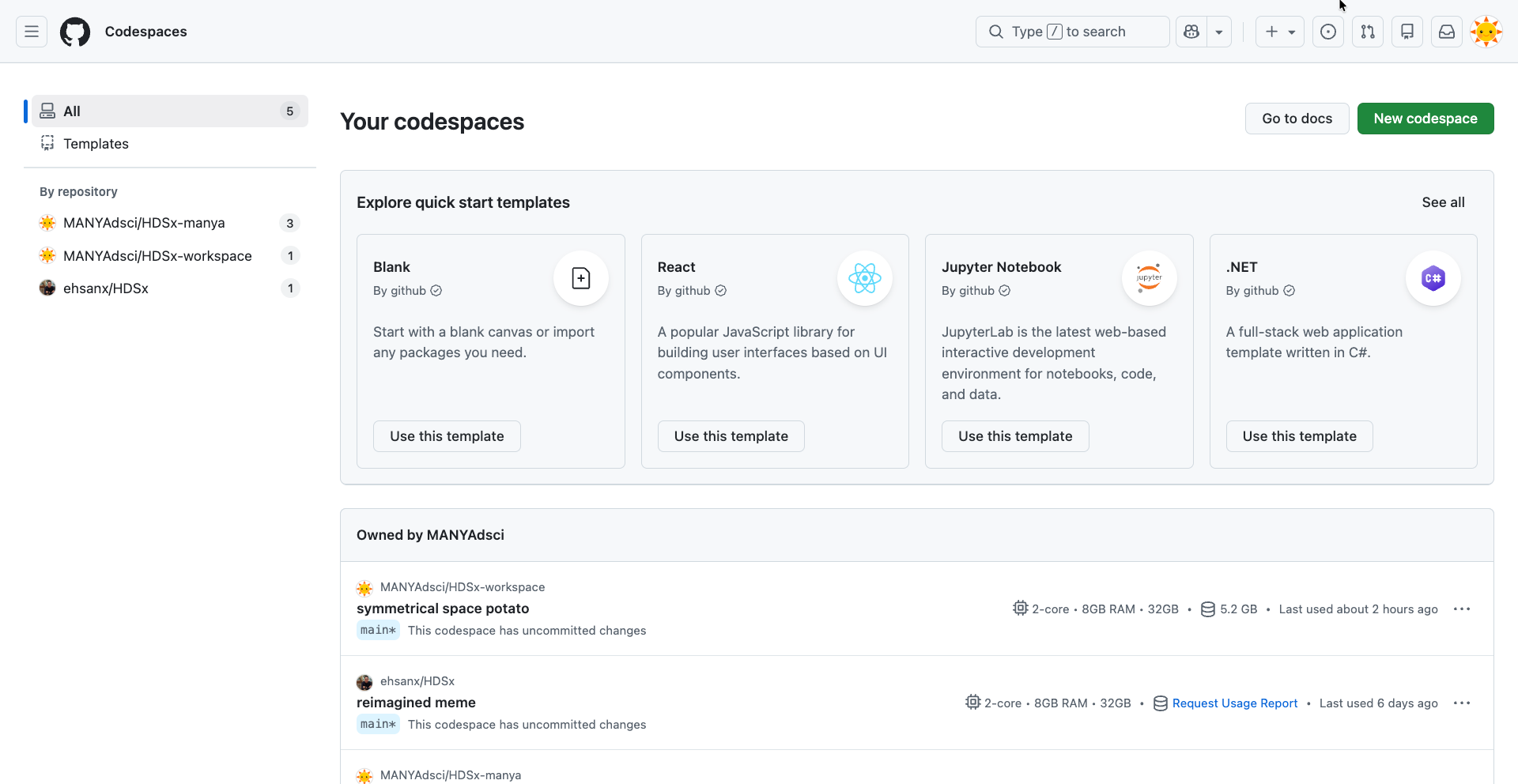
GitHub Codespaces Click the Name of the Codespace
- Do not click the “New codespace” button in the corner. Click the text link of the funny name.
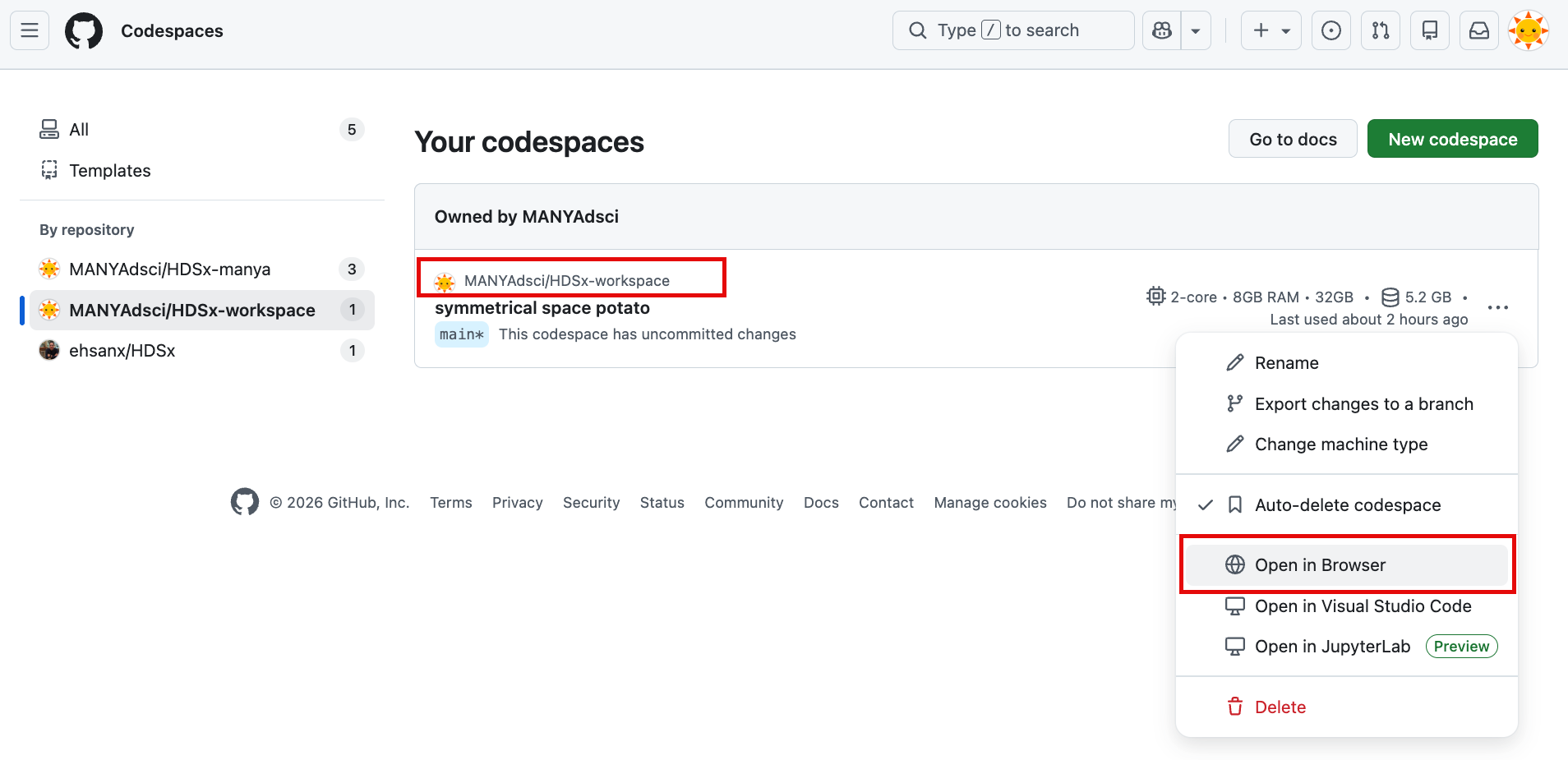
Your Codespace Wait for it to resume
- Benefit: Resuming an existing Codespace is much faster than creating a fresh one because the software is already installed.