Commit Your Work
Your work is currently only on the “Rented Desk” (Codespace). It is a Draft. To save it permanently to the “Vault” (GitHub), you must Commit and Push (Send).
The Analogy: Think of this like shipping a package. You have packed the box (saved the file), but now you need to put a label on it and hand it to the courier.
Think of this as a three-step save process:
- Stage = choose which changed files to include.
- Commit = save a snapshot with a message.
- Sync = upload that snapshot to GitHub so it is safely stored online.
Steps
Click the Source Control icon
- It looks like a blue bubble or a connect-the-dots graph on the far left sidebar.
- This opens the “Shipping Department.” You will see a list of every file you changed.
Stage the two Assignment 1 files
- Hover over
practice_report.qmdandpractice_report.html, then click the + beside each file. - Check the Staged Changes list before continuing. Do not stage unrelated files.
- Hover over
Type a Commit Message
- The Label: You cannot ship a package without a label.
- What to write: Be descriptive but brief. Imagine you are leaving a note for your future self about what you did.
- Example: “Updated author name in practice report”.
- Bad Example: “stuff” or “fix”.
Click Commit
- This records the staged files as one snapshot in the Codespace.
Click Sync Changes (or Push)
- This sends the commit to your GitHub repository.
- Note: You might be asked to click “Always” or “Yes” to approve the sync.
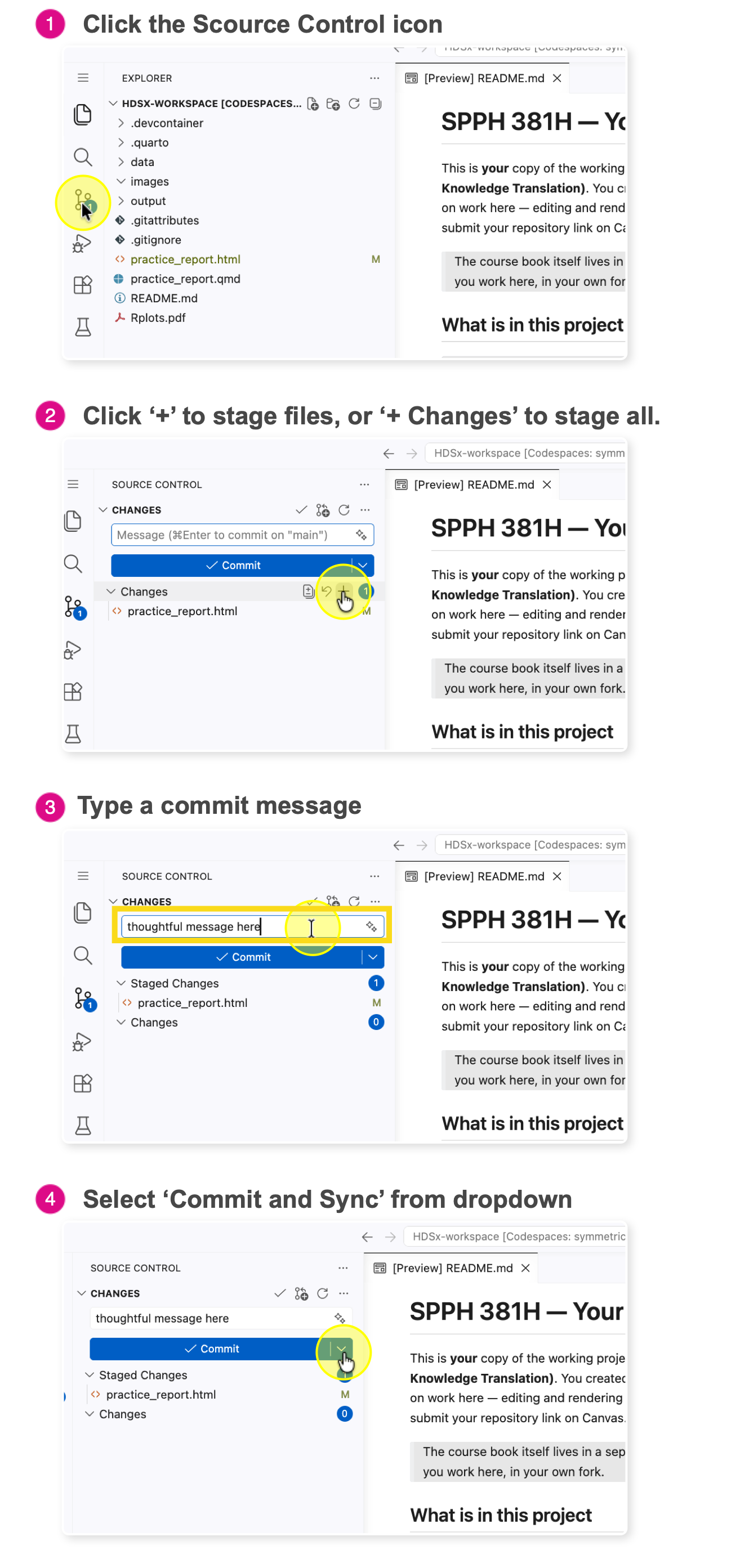
This will push your changes to the remote branch
Verify (Trust but Verify)
Did it actually work?
- Go back to your GitHub Repository tab (The Vault).
- Refresh the page.
- Look at the file list. You should see your “Commit Message” displayed next to the file you just edited.